On this page
- What is workflow automation?
- How workflow automation works: the seven parts
- Workflow automation vs. RPA, BPA and AI agents
- 20 workflow automation examples by department
- How to choose your first three workflows to automate
- Workflow automation tools and what they cost
- What goes wrong, and how to monitor your automations
- When a custom integration beats no-code tools
Workflow automation is software doing the repeatable steps between your apps. A lead fills out your website form, and within minutes a workflow checks your CRM for a duplicate, creates the deal, texts the lead a booking link and gives a salesperson a follow-up task. Nobody retypes anything or has to remember.
The same goes for chasing overdue invoices, keying in vendor bills, setting up a new hire's logins and asking for reviews. Each takes minutes by hand, and each is easy to skip when the team is busy. Below are the parts every workflow needs, 20 examples by department, a way to pick your first three, and what the tools cost as of October 2026.
What is workflow automation?
Workflow automation means using software to run a defined sequence of business steps by rules you set. A workflow is any repeatable sequence with a clear start and finish: an inquiry becomes a contact, a deal, then a job; a vendor bill arrives, gets approved, gets paid.
Good candidates start with a clear event, follow rules you could write on an index card, and use data that already lives in software. Automation is good at moving data, creating records, sending templated messages and reminding people. It's poor at judgment, so a well-built workflow hands judgment calls to a person: the discount request, the upset customer, the unusual payment.
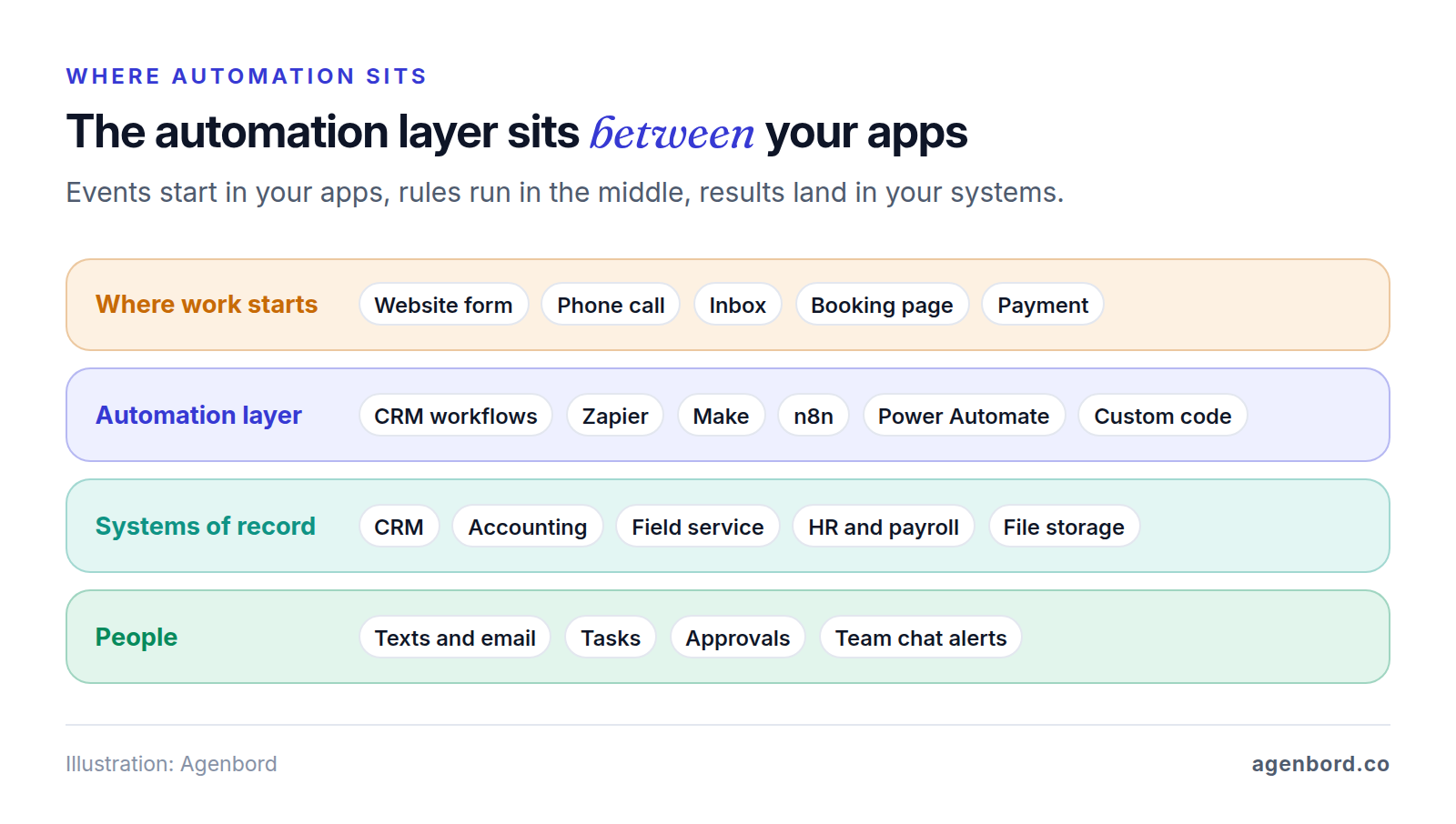
Look for automation in this order:
- Inside apps you already pay for. Many CRMs, accounting systems and booking tools have it built in.
- In a connector tool such as Zapier, Make, n8n or Microsoft Power Automate, which moves data between apps.
- In custom code, when volume, sensitive data or complex logic outgrow the first two.
How workflow automation works: the seven parts
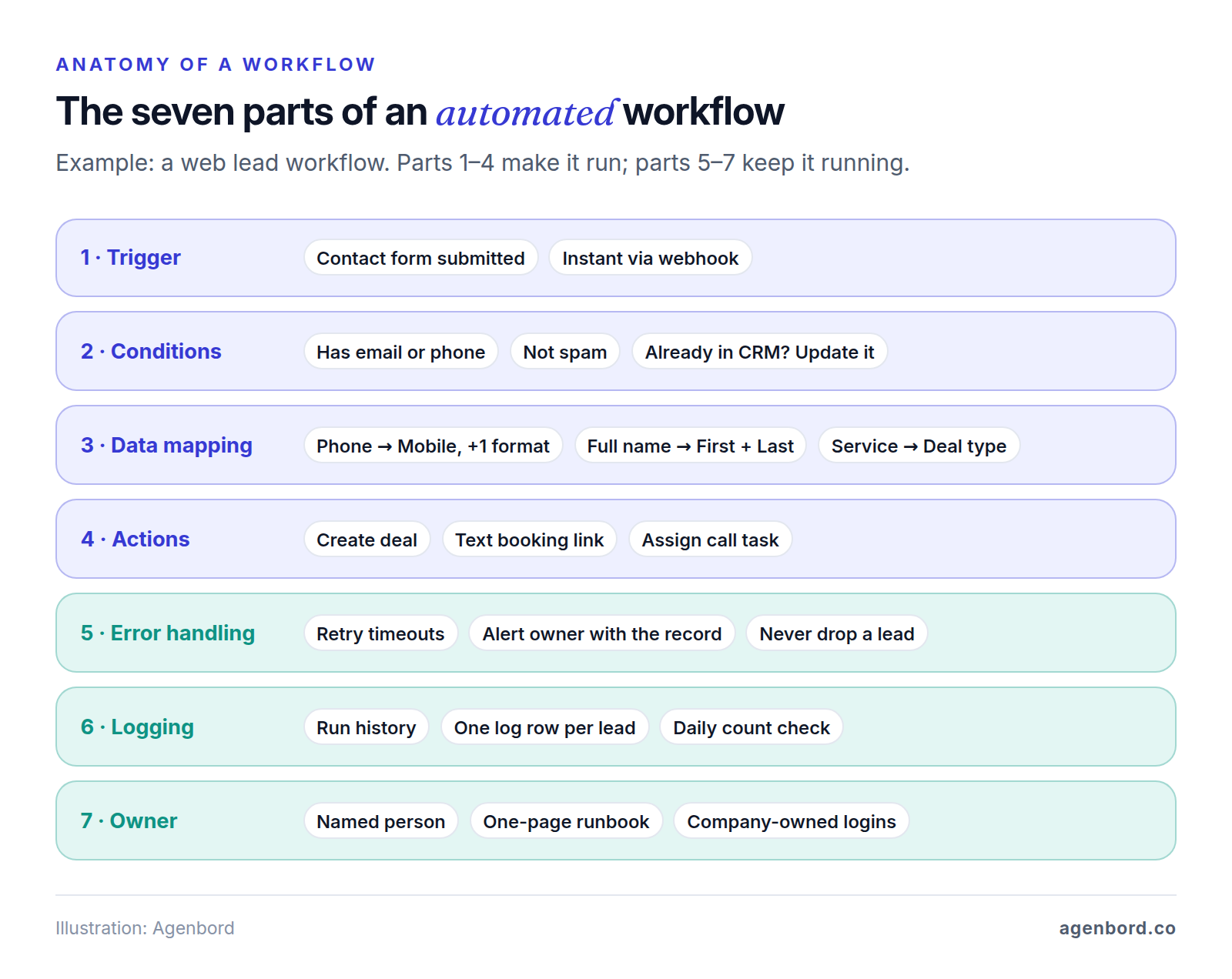
Every automated workflow has seven parts, whatever tool runs it. The first four make it run; the last three keep it running when something changes.
- Trigger: the event that starts a run, such as a form submission, a new email, a deal changing stage, a paid invoice or a schedule. Some triggers are instant because the app pushes the event through a webhook; others are polled on a timer. Zapier polls every 15 minutes on its free plan, every 2 minutes on Professional and every minute on Team, which matters when speed is the point.
- Conditions and filters: rules that decide whether a run continues and which branch it takes. Skip submissions with no email or phone, send deals over $10k to a manager, update an existing contact instead of creating one.
- Actions: create or update records, send emails and texts, create tasks, generate documents, post alerts.
- Data mapping: which field goes where, in what format. The form's "Phone" lands in the CRM's "Mobile" field as +15551234567, "Full name" splits into first and last, and dropdown values match the CRM's options exactly. Workflows that passed testing tend to break here, on the first real record with a blank or unexpected value.
- Error handling: temporary errors, like a timeout or a rate limit, retry automatically; permanent ones alert a person with the record attached. A failed run may be late, but it should never vanish.
- Logging: every tool keeps a run history. For workflows that touch money or customers, also write one row per run to a sheet or table so you can compare counts.
- Owner: a named person who gets the alerts and reviews the workflow quarterly, with a one-page runbook and connections under company-owned accounts, not someone's personal login.
Workflow automation vs. RPA, BPA and AI agents
These terms get used interchangeably, but the difference changes what you buy.
| Term | What it is | Use it when |
|---|---|---|
| Workflow automation | Rule-based steps across apps, connected through their APIs (the interfaces apps expose to other software) | Your apps have integrations and the rules can be written down |
| RPA (robotic process automation) | Software bots that click and type through an app's screens like a person | A system has no API, such as old desktop software; Power Automate's desktop flows are one option |
| BPA (business process automation) | Redesigning and automating a whole process, such as quote-to-cash (how to choose BPA software) | You're fixing an end-to-end process, not one handoff |
| AI agents | Software that uses a language model to choose its own next steps | The task needs judgment, and mistakes are cheap or reviewed |
RPA breaks when screens change, so treat it as a fallback. For most small businesses, a rule-based workflow with one AI step (classify an email, pull fields from an invoice, draft a reply for review) is more dependable than an agent deciding everything. When we scope AI automation work, we start the same way: the smallest AI step that does the job, with rules and review around it. Our guide to AI workflow automation shows how to design and test those steps. For where full agents do fit, see 12 practical uses of AI agents.
20 workflow automation examples by department
Each example lists the trigger, steps, typical tools and what it prevents. Tool names are common options, not endorsements; anything your apps can't do natively can run in Zapier, Make, n8n or Power Automate. The set leans toward service businesses such as home services, but the patterns travel. For whole processes that chain several of these workflows across teams, such as quote-to-cash and procure-to-pay, see our 15 business process automation examples.
Sales and CRM
1. Answer web leads in minutes
- Trigger: a website form is submitted.
- Steps: search the CRM by email, then phone → update the match or create a contact → create a deal tagged with the source page → text a confirmation and booking link → assign an owner and a "call within 1 hour" task → alert the manager if it's still open after 2 hours.
- Tools: form builder, CRM (HubSpot, Pipedrive, Zoho CRM), SMS provider.
- Prevents: duplicate contacts, and leads that wait until Monday.
2. Text back missed calls
- Trigger: a call to your main line goes unanswered.
- Steps: skip internal and blocked numbers → send one text ("Sorry we missed you. Reply here or book online.") → find or create the contact → log the call and assign a callback task.
- Tools: a phone system with webhooks or a CRM integration, SMS provider.
- Prevents: callers moving on to the next company on their list.
3. Proposal to signature to kickoff (document workflow)
- Trigger: a deal moves to the proposal stage.
- Steps: fill a proposal template with CRM fields → send it for e-signature → remind the signer after 3 and 7 days → once signed, mark the deal won, file the PDF, create the project, create the customer and a draft deposit invoice in accounting, and notify operations.
- Tools: CRM, e-signature (DocuSign, PandaDoc, Dropbox Sign), project software, QuickBooks Online or Xero.
- Prevents: retyped prices with typos, and signed work that operations hears about late.
4. Nudge stale deals
- Trigger: weekdays at 7 a.m.
- Steps: find open deals with no activity for 14 days → create a task for the owner with the last note → flag deals idle for 21 days to the manager → send a Friday list of stalled deals by rep.
- Tools: built into many CRMs, such as HubSpot workflows (Professional and Enterprise plans) and Pipedrive automations (Growth and up).
- Prevents: a pipeline that looks full but went cold weeks ago.
Marketing
5. Email sequences that stop at the right time
- Trigger: someone subscribes or downloads a guide.
- Steps: tag the source → send a welcome email → send three or four follow-ups over two weeks → if they click through to pricing or book a call, alert sales and end the sequence → move new customers to the customer list.
- Tools: Mailchimp, Klaviyo, ActiveCampaign or HubSpot, synced with your CRM.
- Prevents: manual follow-up, and pitches to people who already bought. CAN-SPAM requires an opt-out and your physical postal address in marketing email, with opt-outs honored within 10 business days.
6. Review requests after every job
- Trigger: a job or order is marked complete.
- Steps: wait a few hours → send a thank-you with your direct review link → remind once after 3 days → include a one-question survey and turn low scores into a call task for the manager.
- Tools: CRM or field service software with email or SMS, or a review-request app.
- Prevents: the ask nobody remembers to send. Send the link to every customer: Google's policy prohibits selectively soliciting positive reviews and offering incentives for them.
7. Service reminders and win-backs
- Trigger: a daily check finds customers whose last service was 11 months ago, or whose membership lapsed 30 days ago.
- Steps: email a reminder with a booking link ("Your annual AC tune-up is due") → text a second reminder a week later, if they've agreed to texts → stop when they book → create a call task for top accounts.
- Tools: CRM or field service software that stores service dates, plus email and SMS.
- Prevents: repeat business that depends on someone remembering to call.
Customer service
8. Shared inbox triage with response-time alerts
- Trigger: a new email reaches your support or info address.
- Steps: create or update a ticket → tag it by keyword or an AI classification step (billing, scheduling, complaint, sales) → assign it → acknowledge with your expected response time → alert the team lead if there's no reply in 4 business hours.
- Tools: help desk (Help Scout, Zendesk, Freshdesk, HubSpot Service Hub), or Gmail filters and Outlook rules.
- Prevents: messages that sit because everyone assumed someone else had them.
9. Appointment reminders and no-shows
- Trigger: an appointment is booked.
- Steps: confirm instantly → remind 24 hours and 2 hours ahead with a reschedule link → on cancellation, release the slot → on a no-show, send a rebooking message the next morning.
- Tools: your booking tool's own reminders first (Calendly's Workflows feature, for example), plus a connector for CRM updates.
- Prevents: empty slots and staff time spent on reminder calls.
10. Service requests with status updates
- Trigger: a customer, tenant or owner submits a request form with photos.
- Steps: create a work order with category, unit and priority → send the requester a reference number → assign the technician or vendor → message the requester at each status change → ask one question after closing.
- Tools: form, help desk or work-order system, email or SMS.
- Prevents: "any update?" calls and lost requests. A common fit for property managers and HOA and condo associations.
Operations and field service
11. Low-stock reorders with approval
- Trigger: an item drops below its reorder point.
- Steps: draft a purchase order to the usual supplier → request one-click approval by email, Slack or Teams → on approval, send the PO and log the delivery date → alert purchasing if it's late.
- Tools: inventory or accounting software, or a stock sheet.
- Prevents: stockouts that stall crews, and rush orders at retail prices.
12. Job completion to invoice
- Trigger: a technician marks the job complete.
- Steps: check that required photos, checklist and signature are attached (if not, task the tech) → file the photos to the job folder → create the invoice from the job's line items → send it with a payment link.
- Tools: field service software (Jobber, Housecall Pro, ServiceTitan) or a mobile form, plus accounting.
- Prevents: invoices that go out days late, and missing photos when a customer disputes the work.
13. Subcontractor insurance and license expiry
- Trigger: a daily check of certificate of insurance (COI) and license expiration dates.
- Steps: 30 days out, email the sub an upload link → 14 days out, remind them and copy the project manager → on expiry, flag the sub "do not schedule" → clear the flag when a new certificate arrives.
- Tools: your CRM, construction software or a spreadsheet, plus email.
- Prevents: a sub on a construction site with lapsed coverage.
Finance: receivables and payables
14. Overdue invoice reminders that stop when paid
- Trigger: an invoice's due date approaches or passes.
- Steps: remind 3 days before, on the due date and 7 days after → at 14 days, create a call task for the owner instead → stop the moment payment posts.
- Tools: built-in reminders first. QuickBooks Online supports up to three, scheduled up to 90 days before or after the due date, and Xero up to five. Add a connector only for the call task.
- Prevents: late cash because nobody asked, and reminders to customers who already paid. For the full receivables and payables picture, see our invoice automation guide.
15. Payment received, next step started
- Trigger: a payment succeeds.
- Steps: mark the invoice paid → update the deal or job in the CRM → send a receipt that says what happens next → for a deposit, create the scheduling task; for a membership, keep access active.
- Tools: Stripe, Square or QuickBooks Payments, plus accounting and CRM.
- Prevents: crews waiting on "did the deposit come in?", and paying customers getting chased.
16. Vendor bill intake and approval
- Trigger: a vendor emails a bill to a dedicated bills address.
- Steps: extract vendor, invoice number, amount and due date (OCR or an AI step) → skip duplicates of the same vendor and invoice number → create a draft bill coded to the usual account or job → route bills over your threshold, say $2,500, for approval → schedule payment before the due date.
- Tools: QuickBooks Online or Xero, an AP tool such as BILL, or Make or n8n with an extraction step.
- Prevents: double payments, late fees and bills buried in one inbox. Have someone check extractions until you trust them.
HR and onboarding
17. New-hire onboarding
- Trigger: an offer is signed in your HR system.
- Steps: create the email account and group memberships → build a 30-day checklist for the manager, IT and the new hire → send payroll and tax forms through your HR system → order equipment → remind HR that USCIS requires Section 2 of Form I-9 within three business days of the first day of work.
- Tools: Gusto, BambooHR or Rippling; Google Workspace or Microsoft 365; Slack or Teams.
- Prevents: a first day spent waiting for logins, and missed compliance deadlines.
18. Offboarding and access removal
- Trigger: a termination date is set in the HR system.
- Steps: at the end of the last day, suspend the email account and sign out its sessions → transfer files and shared inboxes to the manager → remove app, password-manager and door access → create tasks for equipment return and the final paycheck (state deadlines vary).
- Tools: HR system, Google Workspace or Microsoft 365 admin, password manager.
- Prevents: former employees with live access to customer data.
Admin and IT
19. Client folders and automatic filing
- Trigger: a new client or project is created in the CRM.
- Steps: create folders from a template (Contracts, Photos, Permits, Invoices) named by one convention, such as "2026-114 Smith Kitchen" → link the folder on the CRM record → file that client's email attachments into the right subfolder.
- Tools: Google Drive or SharePoint, CRM, Gmail or Outlook.
- Prevents: hunting for the signed change order, and files on personal drives.
20. Weekly KPI digest
- Trigger: Mondays at 7 a.m.
- Steps: pull last week's leads and won deals (CRM), invoices and cash collected (accounting), completed jobs and ad spend → append them to a sheet → post a five-line summary with week-over-week changes.
- Tools: CRM, accounting, ad platforms, Google Sheets or Excel.
- Prevents: the Monday export-and-paste routine, and decisions made on stale numbers.
How to choose your first three workflows to automate
Pick workflows that run often, take real time, hurt when done wrong and are safe to hand to software, not the most impressive one. Score each candidate from 1 to 5 on four factors:
| Factor | 1 | 3 | 5 |
|---|---|---|---|
| Frequency | Monthly or less | Weekly | Daily or more |
| Time per run, including switching apps | Under 2 minutes | About 10 minutes | 30 minutes or more |
| Error cost when done by hand | Minor annoyance | Rework or a late invoice | Lost customer, lost money or a compliance miss |
| Safety if the automation misfires | Moves money or messages customers with no review | Visible but easy to fix | Internal only and easy to undo |
Multiply the four scores (625 is the maximum) and rank. Do it with the people who do the work; they know the real frequency and minutes. If two people would describe a process differently, agree on it before automating it: automation makes a messy process fail faster.
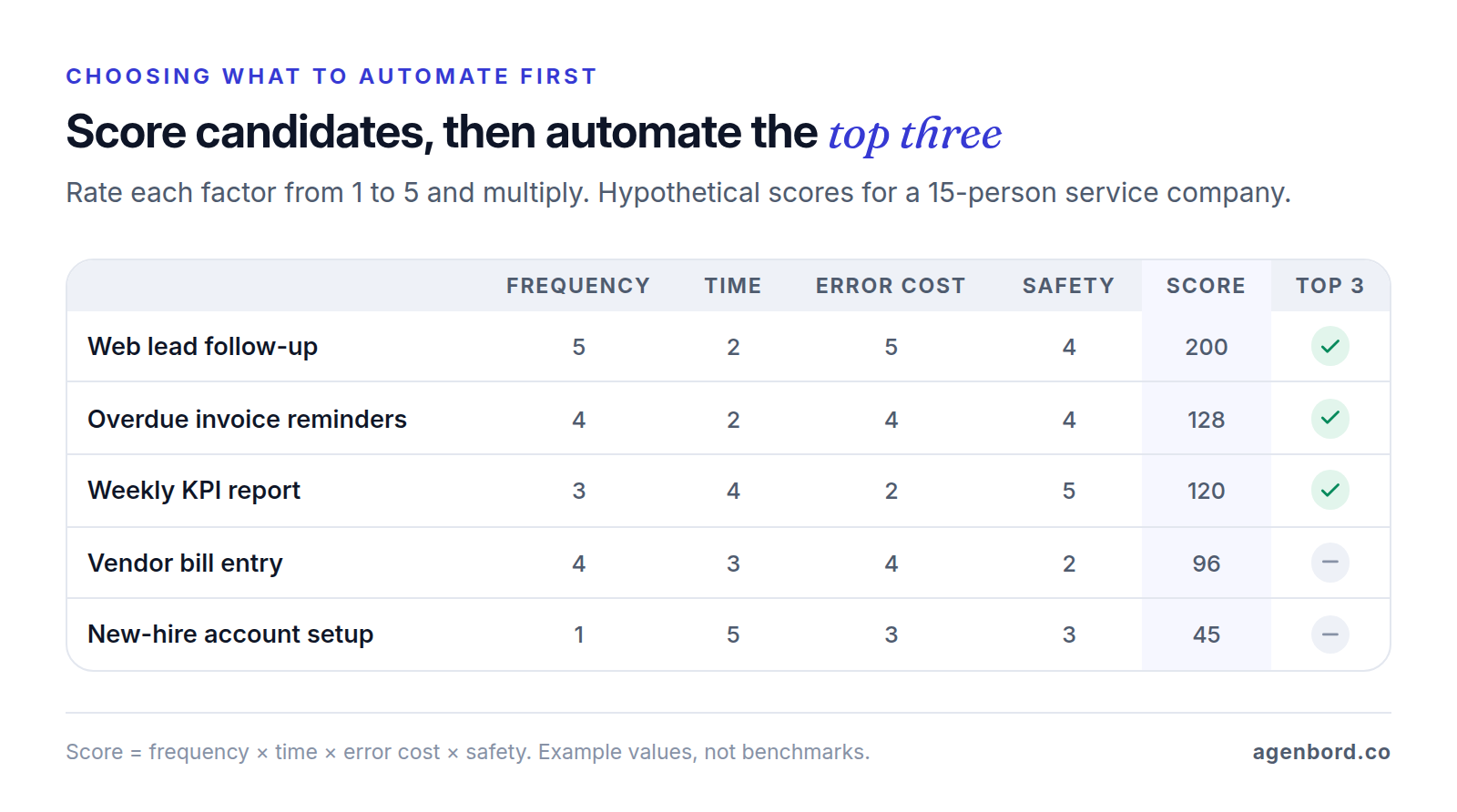
A low safety score means add a checkpoint, not skip the workflow: in the example, an approval step before payment moves vendor bill entry from fourth to second.
Roll each one out the same way: run it alongside the manual process for a week, compare counts (form submissions against new CRM deals, say), then switch the manual version off.
Workflow automation tools and what they cost
Workflow automation software comes in two kinds: automation built into your apps, and connector tools that work across apps. Use the built-in kind wherever your plan includes it; it adds no moving parts.
| Tool | How it bills | Free option | Entry paid plan (October 2026) |
|---|---|---|---|
| Zapier | Tasks: each successful action step; triggers and filters don't count | 100 tasks/month, two-step Zaps, checks every 15 minutes | Professional: $19.99/month billed yearly ($29.99 monthly), 750 tasks |
| Make | Credits: most module actions use 1 credit | 1,000 credits/month, runs at most every 15 minutes | Core: $9/month billed annually ($12 monthly), 10,000 credits |
| n8n | Executions: one full workflow run, however many steps | Self-hosted Community Edition (you run the server) | Cloud Starter: €20/month billed annually, 2,500 executions |
| Power Automate | Per user; per bot for unattended RPA | Included in select Microsoft 365 plans: cloud flows with standard connectors | Premium: $15/user/month, paid yearly |
| CRM automation | Included in the CRM plan | Depends on the CRM | HubSpot workflows: Professional and Enterprise; Pipedrive automations: Growth and up |
Where each fits:
- Zapier: the easiest to start with and the biggest app directory (9,000+ apps, against Make's 3,000+). Per-task billing climbs with multi-step volume: four action steps running 400 times a month is 1,600 tasks, more than double the Professional entry tier.
- Make: strong branching and data transformation in a visual editor, and far more units per dollar, with a steeper learning curve.
- n8n: counts each run once, so that same workflow uses 400 executions, and adds code steps and HTTP calls to any API. Self-hosting is free, but you own the server, updates and security.
- Power Automate: the natural fit if you live in Outlook, Teams, SharePoint and Excel. Premium connectors and desktop RPA generally need a paid license.
- CRM automation: the most dependable choice for steps inside the CRM, the weakest across other apps. If your CRM can't model the process at all, that's a custom CRM question.
For cost comparisons at higher volumes, see our Zapier vs. Make vs. n8n guide, and for a wider field, our roundup of Zapier alternatives. Prices change, so confirm them on each pricing page.
What goes wrong, and how to monitor your automations
Plan for changes around the tool: a password, a field name, a volume spike, a person leaving.
- Silent failures. A connection expires, the trigger stops firing, and nothing errors because nothing runs. Zapier holds runs for a disconnected app and pauses a Zap that fails on 95% or more of its runs over seven days, but someone still has to notice. Fix: a daily count check ("zero new leads on a weekday") that alerts a person.
- Duplicate records. Retries after timeouts, two workflows on one trigger and workflows that write to their own trigger sheet can each create duplicates, as Zapier's help center notes. CRMs match on limited fields too: HubSpot dedupes contacts by email, so a second email address means a second contact, and companies created through the API aren't deduplicated by domain. Fix: find-or-create steps on a stable key, skip source IDs you've already processed, and keep one workflow per trigger.
- Rate limits and floods. Most APIs cap request speed; Google Sheets allows 60 write requests per minute per user per project. Import 2,000 contacts and a "new contact" workflow tries to run 2,000 times, and Zapier holds runs when a trigger brings in more than 100 records at once. Fix: pause workflows before bulk imports, batch writes and retry with increasing delays.
- API and field changes. A vendor retires an API version or someone renames a CRM field, and a mapping starts writing blanks. Fix: document mappings and run a test record after any change to a connected app.
- No owner. The workflow runs under a former employee's login and alerts land in an unread inbox. Fix: company-owned accounts, a named owner and a one-page runbook.
A monitoring setup that covers all five:
- Errors alert a shared channel and a named owner.
- Temporary errors retry automatically: Zapier's autoreplay (Professional and up), Make's "Store incomplete executions" (off by default) or an n8n error workflow.
- A daily count check runs for every workflow that touches customers or money.
- Workflows that create invoices, bills or payments write one log row per run.
- A quarterly review fixes, merges or deletes workflows.
When a custom integration beats no-code tools
For most small-business workflows, built-in automation or a connector tool is the right answer and cheaper than custom code. A custom integration service, meaning code you own running in your own cloud account, earns its cost when:
- Volume is high: tens of thousands of runs a month, or per-task fees that have become a real line item. Self-hosted n8n can be a middle step.
- Data is sensitive: client financial, legal or health records you'd rather not pass through another vendor, or audit requirements you have to prove.
- Logic is complex: transactions that must fully succeed or fully roll back, APIs the connector tools support poorly, or a workflow that's part of what you sell.
A workflow central to how a business runs often belongs inside the software itself. Our own products work that way: Smart Construction, our construction ERP, handles payment approvals on WhatsApp, and our recurring billing platform sends monthly invoices on WhatsApp and reconciles payments into customer ledgers.
Typical ranges for our business process automation work: from $1.5k for a single workflow (1–2 weeks), $6k–$20k for a program of 5–15 workflows, and $15k+ for a custom integration service, with tool subscriptions billed to you directly. For bigger decisions, see our build vs. buy framework.
The order to work in: built-in automation first, a connector tool second, custom code last, and a named owner for every workflow from day one.
Sources
- Zapier - Plans and pricing (accessed October 2026)
- Zapier Help Center - Zap limits: how tasks are counted (accessed October 2026)
- Zapier Help Center - Decide how your Zap handles errors with advanced settings (accessed October 2026)
- Zapier Help Center - Choose your Zaps' flood protection limit (accessed October 2026)
- Zapier Help Center - Zap is creating duplicate data (accessed October 2026)
- Zapier Help Center - How to troubleshoot errors in Zap workflows (accessed October 2026)
- Zapier - App directory (accessed October 2026)
- Make - Pricing (accessed October 2026)
- Make Help Center - Incomplete executions (accessed October 2026)
- n8n - Pricing (accessed October 2026)
- n8n Docs - Choose how to use n8n (accessed October 2026)
- n8n Docs - Handle errors gracefully (accessed October 2026)
- n8n Docs - Code node (accessed October 2026)
- n8n - Integrations directory (accessed October 2026)
- Microsoft - Power Automate pricing (accessed October 2026)
- Microsoft Learn - Power Automate licensing FAQ (accessed October 2026)
- HubSpot Knowledge Base - Create workflows (accessed October 2026)
- HubSpot Knowledge Base - Deduplication of records (accessed October 2026)
- Pipedrive Knowledge Base - Automation limits in Pipedrive (accessed October 2026)
- QuickBooks - Send invoice reminders automatically or manually in QuickBooks Online (accessed October 2026)
- Xero Central - How invoice reminders work (accessed October 2026)
- Calendly Help Center - Workflows overview (accessed October 2026)
- Google - Maps user contributed content policy (accessed October 2026)
- FTC - CAN-SPAM Act: A Compliance Guide for Business (accessed October 2026)
- FCC - Stop Unwanted Robocalls and Texts (accessed October 2026)
- The Campaign Registry - 10DLC registration (accessed October 2026)
- USCIS - Completing Section 2, Employer Review and Attestation (accessed October 2026)
- U.S. Department of Labor - Last Paycheck (accessed October 2026)
- Google for Developers - Google Sheets API usage limits (accessed October 2026)
Prices, plans and regulations change. Figures were checked on October 1, 2026; follow the links for the latest. Nothing here is legal, tax or financial advice.
About the author
Founder, Agenbord
Muhammad Hamza is the founder of Agenbord, the Fort Lauderdale software company behind the construction ERP Smart Construction and a WhatsApp-first billing platform. He writes practical guides on buying, building and automating business software.